LMS publishing guides · TalentLMS
Publish a Shadow Capture walkthrough to TalentLMS
TalentLMS takes SCORM 1.2 content as a course unit through a single upload control. This guide walks through it with TalentLMS's own labels and says which display settings suit a walkthrough recorded from a desktop screen. Verify the result in your own LMS before assigning it to learners.
Can Shadow Capture training run in TalentLMS?
Yes, as a SCORM 1.2 package. TalentLMS documents support for SCORM 1.2, xAPI and cmi5, and not SCORM 2004, so choose 1.2 when you export. The unit completes when the package reports the status Completed, which a Shadow Capture walkthrough does when the learner finishes the last step.
Publishing notes
- Validation
- Use this guide alongside the vendor documentation below. Confirm launch, resume and completion with a learner account in your own LMS.
- Sources
- How to work with SCORM 1.2, xAPI and cmi5 in TalentLMS, How to add content to a course, Upload limits.
- Package
- The free sample package, SCORM 1.2, about 423 KB.
Before you start
- Permissions. An Administrator or Instructor account, assigned to the course as an Instructor. TalentLMS notes that even an Administrator has to be assigned to a course before editing its content.
- Format. SCORM 1.2. TalentLMS lists SCORM 1.2, xAPI and cmi5; AICC is not supported and SCORM 2004 is not listed.
- Size. The limit for SCORM files is 600 MB on paid plans and 100 MB per file on the Free plan. A Shadow Capture package is a fraction of that; the sample is about 423 KB and a long walkthrough with many screens is a few megabytes.
- The package. A Shadow Capture SCORM export, or the sample. TalentLMS
requires
imsmanifest.xmlin the root folder of the zip, which is where Shadow Capture puts it.
Export from Shadow Capture
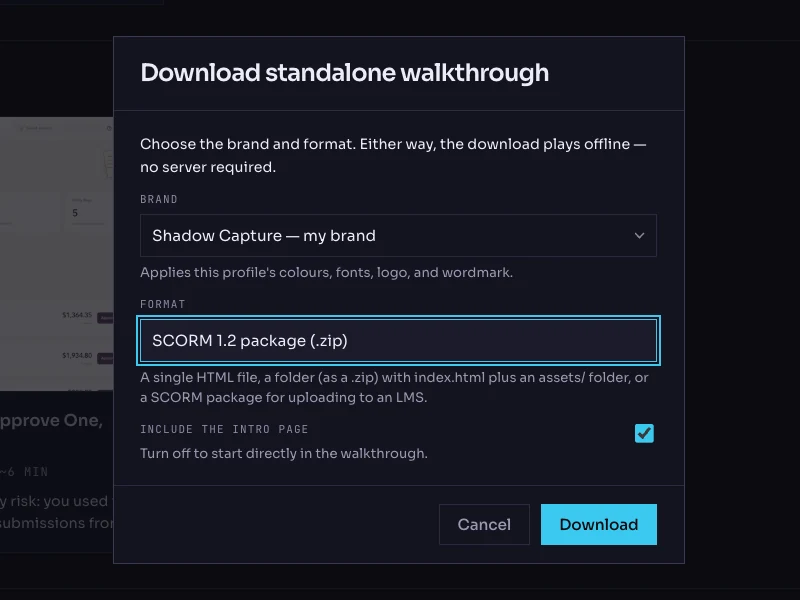
- Open the walkthrough's menu. On the Walkthroughs page, click the More options button on the walkthrough's card and choose Download…. The dialog is titled Download standalone walkthrough.
- Choose the brand. The Brand list holds your saved profiles. The brand is frozen into the package; the recorded product screens are never restyled.
- Choose the format: SCORM 1.2 package (.zip). The other options are Single HTML file, Folder (.zip) and SCORM 2004 package (.zip). TalentLMS needs 1.2.
- Keep the intro page on. Include the intro page is checked by default; it is the scenario and objectives screen the learner reads first.
- Click Download. The file is named after the walkthrough with a
-scorm.zipsuffix. Do not unzip it.
Add the unit in TalentLMS
- Open the course for editing. Go to Courses, hover over the course, and click to edit it.
- Add the unit. Click Add, hover over Learning Activities, and select SCORM | xAPI | cmi5.
- Upload the package. Click Upload a SCORM, xAPI, or cmi5 ZIP file and choose the zip, or drag it into the content area. You can also pick a zip already in the course files.
- Open the unit options. When the upload finishes, click More options to edit the Unit options.
- Choose how it displays. From Show as, choose between Embedded and a pop-up dialog box. The walkthrough is laid out for a desktop-width screen, so if you embed it, use the Size section to set Width to the full content width and Height to at least 800 pixels; the pop-up is the safer choice on a narrow course layout.
- Leave the failed-status option alone. When failed retain the failed status upon retries concerns packages that report a failed status. An Shadow Capture package never reports passed or failed, only completed, so the setting has no effect.
- Save, then publish the unit. Click Save, then publish the unit so learners can see it.
- Set the course rules. Under Course Options, the Rules and paths section sets what completes the course. A SCORM unit completes on the package's own completed status, so no extra condition is needed on the unit.
Verify it, as a learner
- Launch it from a learner account. Use a test learner enrolled on the course. The walkthrough should open on its intro card, embedded or in the pop-up as you chose.
- Close mid-way, then relaunch. Complete two steps in You try, close the unit, and open it again. It should resume at the same step and mode.
- Finish it. Work through to the completion screen. The unit should show as completed in the learner's progress, and the course's reports should show the unit completed with a time. Note what you see, including the report you used; that is the detail we want in the publishing notes above.
- Try a wrong choice. Choose the wrong filter in the expense example. Read the feedback and confirm the step stays incomplete until the correct action is taken.
Common failures and what they mean
- "This is not a valid SCORM file". The manifest is not in the root of the zip, usually because a folder was zipped rather than its contents. Re-download the export rather than re-zipping by hand.
- The unit never completes. The package sets completed only when the last step is done, so a learner who reads the completion screen has completed it. If the status still does not change, the launch was outside the SCORM player, for example a preview mode that does not provide the runtime.
- The player scrolls inside its frame. The embedded size is smaller than the recorded screen. Increase Height, or switch Show as to the pop-up.
- Upload rejected for size. On the Free plan the general limit is 100 MB per file. A Shadow Capture package should never approach it; if one does, the walkthrough has captured very large pages and we would like to hear about it.
Known limitations
- No score, so no test-style grade from the unit. Add a TalentLMS Test unit if you need one.
- A re-recorded walkthrough is a new zip. Replace the file on the unit.