01 / Record
Do the task once.
Capture a workflow with the Chrome extension. Shadow Capture saves the screens and the actions you take.
Interactive software training
Record a task in your web application. Shadow Capture turns it into an interactive walkthrough your people can practice, on copies of the real screens.
Free during beta. No credit card. Access by request.
How it works
01 / Record
Capture a workflow with the Chrome extension. Shadow Capture saves the screens and the actions you take.
02 / Review
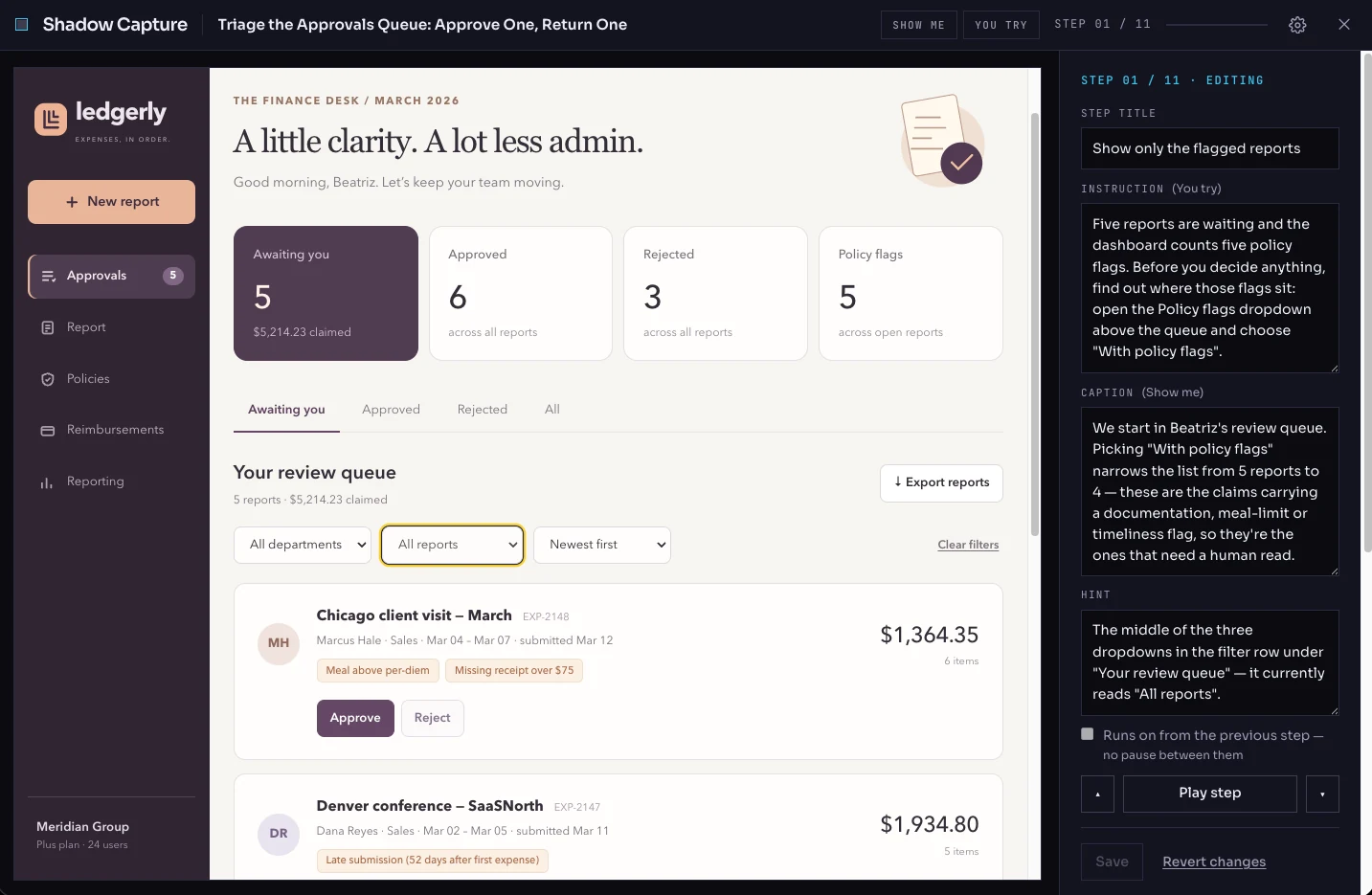
AI drafts the instructions, hints and feedback from your recording. Review and edit the walkthrough before you publish.
03 / Publish
Export to your LMS as SCORM, share a standalone file, or embed the walkthrough on your site.
Built for practice
For employee onboarding, customer training and the everyday workflows people need to get right.
Show me demonstrates the task. You try lets learners act, with hints and feedback as they go.
Learners work on recorded copies of your interface. Their actions do not approve a real expense, update a customer record or touch your production system.
Keep the interface learners need to recognize. Apply your logo, colors and type to the player around it.
SCORM 1.2 and 2004 exports report completion, time and resume position to your LMS. Get a sample package →
A few practical details
Workflows in web applications using a Chrome-compatible desktop browser. Start with a short task and test the capture: canvas-heavy interfaces, video and embedded third-party frames may not reproduce faithfully. Use test data, because recorded screens retain visible information.
They do not need a Shadow Capture account or extension. Only the author uses the recorder. Learners open the walkthrough in a desktop browser, through your LMS, an embed or a standalone file. Your LMS may require its own login.
A video shows someone doing a task. An interactive software simulation lets the learner perform it on recorded screens, with each action checked and feedback when they need it. Compare training formats.
Edit instructions when the wording or policy changes. Record again when the interface or workflow changes, review the result, and republish. Updates are made by you; they are not automatic.
Capture, AI authoring, editing, brand profiles and exports are available free during beta. Access requests are reviewed by a person. Team roles, SSO and scored assessments are not available. Pricing after beta has not been set; we will give participants notice before that changes.
Your recordings are uploaded to your Shadow Capture account. Captured content is processed by an AI provider to draft the training. Record with permission and use fictional or test data. The privacy notice explains what is collected and who processes it.
Join the beta
Choose a task your people need to get right. We can help you build your first walkthrough.
Free during beta. Requests are reviewed by a person.