LMS publishing guides · Workday Learning
Publish a Shadow Capture walkthrough to Workday Learning
Workday Learning calls SCORM and AICC uploads packaged content, and they go into a digital course as a Media lesson. This guide walks through it with Workday's own task and field labels. It is written from Workday's public administrator guide; we have not yet run the upload ourselves, and the guide says so where it matters.
It should, as a SCORM 1.2 package, once your tenant has packaged content enabled. Workday accepts SCORM 1.2, SCORM 2004 in every edition, and AICC, and lets the package's own logic decide when a lesson is Completed. Make the lesson mandatory so it counts toward course completion, and leave Provide Course Grade unticked: a Shadow Capture package reports completion and time, never a score.
- Status
- Reference guide based on vendor documentation. This upload has not been tested end to end by Shadow Capture; verify it in your own environment before assigning the course.
- Not confirmed
- Whether your tenant needs Enable Completion Without Exit for SCORM 1.X for the lesson to complete as soon as the last step is done, or whether closing the pop-up window is enough. A Shadow Capture package sends Completed at the last step and finishes the session when the window closes, so either should work. Also, Workday announced Workday Learning powered by Sana in July 2026; the labels here are from the administrator guide current at the time of writing.
- Sources
- Concept: Packaged Content, Create Learning Courses, Setup Considerations: Packaged Content, Edit Tenant Setup - HCM, Workday Learning components.
- Package
- The free sample package, SCORM 1.2, about 423 KB.
Before you start
- Tenant setup. Packaged content has to be switched on once. In the Edit Tenant Setup - HCM task, under Packaged Content, select Enable Packaged Content. This needs the Set Up: Tenant Setup - HCM and Set Up: Learning External Content Integrations domains, so it is usually a Workday administrator's job.
- Security. Creating a course needs the Manage: Learning Content and Set Up: Learning Catalog domains, which a learning administrator normally holds.
- Format. SCORM 1.2. Workday also accepts SCORM 2004 in editions two to four, but notes a resume error with 2nd and 3rd Edition content that it treats as expected behaviour; 4th Edition is corrected. Shadow Capture's 2004 export is 4th Edition, but 1.2 is the simpler choice.
- The package. A Shadow Capture SCORM export, or the sample. Workday wants the manifest and content directly inside the zip, not nested in a folder, which is how Shadow Capture writes it. The 4 GB limit for a direct upload is nowhere near.
Export from Shadow Capture
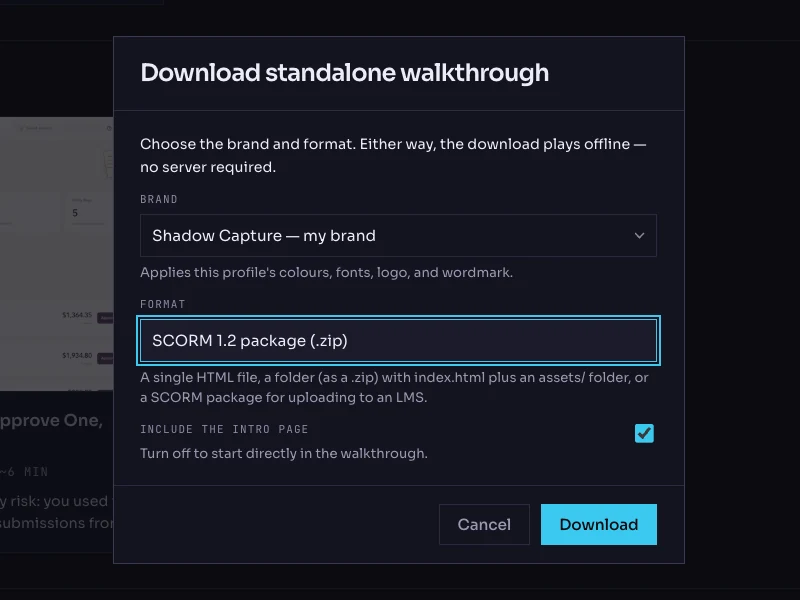
- Open the walkthrough's menu. On the Walkthroughs page, click the More options button on the walkthrough's card and choose Download…. The dialog is titled Download standalone walkthrough.
- Choose the brand. The Brand list holds your saved profiles. The brand is frozen into the package; the recorded product screens are never restyled.
- Choose the format: SCORM 1.2 package (.zip). The other options are Single HTML file, Folder (.zip) and SCORM 2004 package (.zip). Workday accepts the 2004 package too; 1.2 is the recommendation here.
- Keep the intro page on. Include the intro page is checked by default; it is the scenario and objectives screen the learner reads first.
- Click Download. The file is named after the walkthrough with a
-scorm.zipsuffix. Do not unzip it.
Create the digital course
- Run Create Course. Search for the Create Course task and choose the course type Create Digital Course. A digital course can hold any lesson type except instructor-led and training activity lessons.
- Fill in the course. Course Title, Description (the walkthrough's one-sentence scenario reads well here) and a Topic so it can be found. Requires Enrollment is the default. Leave Inactive, Exclude from Search and Browse and Exclude from Recommendations clear when you want learners to find it.
- Add the lesson. Click Add Lesson and choose the lesson type Media. Click Select File and upload the zip from your desktop, or pick it from Workday Drive if it is already there. Give the lesson the walkthrough's title.
- Make it count. Tick Make Lesson Mandatory, which is what makes the lesson count toward course completion. Leave Provide Course Grade unticked: it nominates a lesson to supply the course's grade, and this one reports no score.
- Submit. Workday routes the course for review or approval according to your Manage Course business process. Digital courses are not effective-dated, so it is available as soon as the process completes and the course is not marked Inactive.
Verify it, as a learner
- Enroll a test learner and launch. Packaged content opens in a separate pop-up window, so the learner's pop-up blocker must allow Workday. The walkthrough opens on its intro card and the lesson moves from Not Started to In Progress.
- Close mid-way, then relaunch. Complete two steps in You try, close the window, and launch again. It should resume at the same step and mode.
- Finish it. Work through to the completion screen and close the window. The lesson should read Completed, and because it is mandatory, the course completes with it. If the lesson stays In Progress until the window is closed, that is the tenant option named in the test record; if it stays In Progress after, tell us.
- Check a report. The learner's My Transcript, a manager's My Team's Learning, and the Learner Engagement report all show course status. Workday keeps pass, fail and score summaries only for packages that send them, so expect no score here.
- Try a wrong choice. On the status step, pick Pending. The feedback should explain why, and the lesson should stay In Progress until the step is actually done.
Common failures and what they mean
- "Processing failed for this media item." Workday's FAQ attributes this to content nested inside a folder in the zip. Shadow Capture's export places the manifest at the root; re-download rather than re-zipping by hand.
- Nothing opens on launch. The pop-up was blocked. Workday asks learners to disable pop-up blockers for it.
- "A fatal error has occurred, communication with the server has been lost." The Workday session expired: four hours of inactivity, or eighteen hours in all. Workday saves progress up to that point, so the learner relaunches and resumes.
- The course does not complete when the lesson does. The lesson is not marked mandatory. Edit the course and tick Make Lesson Mandatory.
- Anything else. Workday recommends testing packaged content for standards compliance in SCORM Cloud. The sample package on this site has been run in Moodle and TalentLMS.
Known limitations
- No score, so nothing for Provide Course Grade or a passing score. Add a Workday assessment lesson if you need one.
- Packaged content can only live inside a course lesson, not as a stand-alone lesson created with Create Lesson.
- SCORM content in Workday does not work cross-domain, so it has to be uploaded, not linked from your own host.
- Mobile needs Enable Packaged Content on Mobile in tenant setup, and Shadow Capture walkthroughs are recorded from desktop screens in any case.
- A re-recorded walkthrough is a new zip. Edit the course and replace the lesson's file.
Next