LMS publishing guides · SAP SuccessFactors Learning
Publish a Shadow Capture walkthrough to SAP SuccessFactors Learning
SAP SuccessFactors Learning imports a SCORM package through a wizard that can create the learning item at the same time, then publishes the item through a library. This guide walks through it with SAP's own labels. It is written from SAP's 1H 2026 administrator guides; we have not yet run the import ourselves, and the guide says so where it matters.
It should, as a SCORM 1.2 package. SAP accepts AICC, SCORM 1.2, and SCORM 2004 2nd and 4th Edition, so Shadow Capture's 2004 export would also import. Two settings decide whether the item completes: leave Mastery Score empty, because the package sends no score and SAP marks a content object that misses a mastery score as finished rather than complete, and keep Add to History on Completion of All Content switched on.
- Status
- Reference guide based on vendor documentation. This upload has not been tested end to end by Shadow Capture; verify it in your own environment before assigning the course.
- Not confirmed
- The exact workflow names a role needs for Import Content and Items; SAP's guides describe copying the LEARNING_ADMIN role rather than naming them. Also whether the completion recorded on the last step survives a learner closing the content window with the browser's own close button, which SAP notes can skip the exit call. A Shadow Capture package commits Completed before the window closes, so it should.
- Sources
- Managing SAP SuccessFactors Learning for Administrators, 1H 2026 (PDF), Implementing Structured Content, 1H 2026 (PDF), Defining Roles for SAP SuccessFactors Learning, 1H 2026 (PDF).
- Package
- The free sample package, SCORM 1.2, about 423 KB.
Before you start
- Permissions. Learning uses its own security domains, roles and workflows rather than role-based permissions. An administrator role with the content and item workflows, typically a copy of LEARNING_ADMIN trimmed in Role Management, can import content, create items and add them to libraries.
- A deployment location. Imported content is extracted to a content deployment location on the iContent server, set up under System Administration, Configuration, Content Deployment Locations. Ask which one to use.
- Format. SCORM 1.2. SAP also accepts SCORM 2004 2nd and 4th Edition, and Shadow Capture's 2004 export is 4th Edition, but 2004 imports require a Content Package ID for sequencing that a single-SCO package does not need. 1.2 is simpler.
- The package. A Shadow Capture SCORM export, or the sample. SAP reads
imsmanifest.xmlfrom the root of the zip and requires the schema version tag in it, both present in Shadow Capture's export. The size limit is whatever your system's content import configuration allows; a Shadow Capture package is a fraction of a megabyte.
Export from Shadow Capture
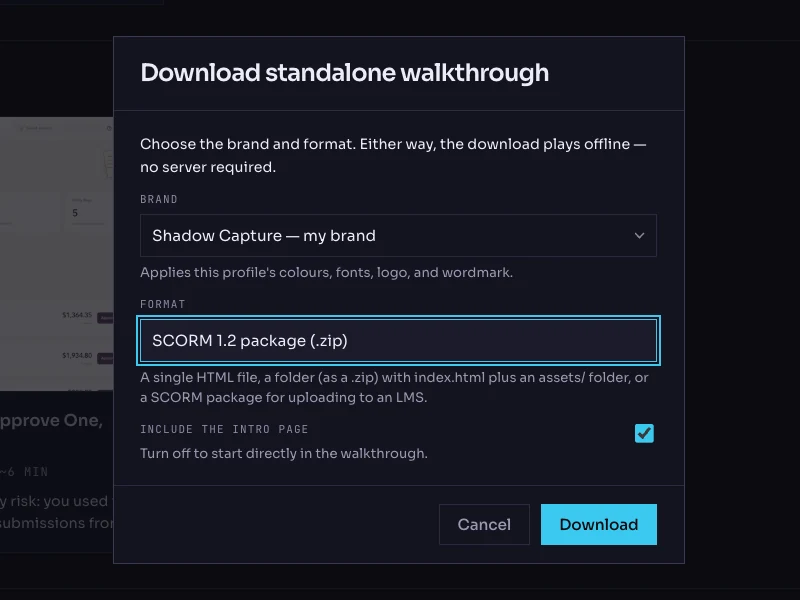
- Open the walkthrough's menu. On the Walkthroughs page, click the More options button on the walkthrough's card and choose Download…. The dialog is titled Download standalone walkthrough.
- Choose the brand. The Brand list holds your saved profiles. The brand is frozen into the package; the recorded product screens are never restyled.
- Choose the format: SCORM 1.2 package (.zip). The other options are Single HTML file, Folder (.zip) and SCORM 2004 package (.zip).
- Keep the intro page on. Include the intro page is checked by default; it is the scenario and objectives screen the learner reads first.
- Click Download. The file is named after the walkthrough with a
-scorm.zipsuffix. Do not unzip it, and do not put spaces in its name.
Import it and create the item
- Open the wizard. Go to Content, then Import Content. Choose Add New Content and click Next.
- Choose the file. Browse to the zip and click Next.
- Deploy it. Tick Deploy Content. Choose the Server Location and the Security Domain ID. Content Package ID is mandatory only for SCORM 2004. Leave Enable mobile access for all content and Enable offline player download off; the walkthrough is recorded from desktop screens.
- Create the learning item. Tick Create a new Learning item for each content package. Under Summary, give the Item ID or a prefix. Under Settings, choose the Completion Status the item should record when the package reports Completed, and a Failure Status that will never be used. Under Library and Category, pick the Library ID and Category ID. Use Assign Content to Test User to assign it to yourself for the checks below.
- Import. Click Import Files, read the Import Summary, and click Schedule Job if your file size means the import runs in the background.
- Check the item's online settings. Open Learning Activities, Items, the new item, Online Content, Settings. Add to History on Completion of All Content must be on; without it the item never completes. Leave Mastery Score empty and Complete Content on Launch off. Tick Content is available for launch (available for users). If you change any of these later, the item has to be reassigned to users.
- Check the content object's launch method. Under Content, Content Objects, the object's Launch Method should read SCORM 1.2. SCORM 1.2 content launches in a new browser window with the toolbar shown, which gives the player the desktop-width screen it is laid out for.
- Publish through a library. If the wizard did not add it, open the item's Libraries tab and add it. Learners reach a library through assignment profiles, or you assign the item directly under People, Users, Assigned Items.
Verify it, as a learner
- Launch it from the test user's learning plan. The walkthrough opens in a new window on its intro card. A pop-up blocker will stop it; allow the site.
- Close mid-way, then relaunch. Complete two steps in You try, close the window, and launch again. It should resume at the same step and mode. Note that leaving the online structure page in SAP while the content is open ends the connection.
- Finish it. Work through to the completion screen and close the window. Under People, Users, the test user's Completed Items should list the item; View Details shows the Completion Date, Completion Status and Total Hours. Learning History Details shows the first and last access.
- Try a wrong choice. On the status step, pick Pending. The feedback should explain why, and the item should stay in progress until the step is actually done.
Common failures and what they mean
- "Imported zip does not have valid content files." The manifest is not at the root of the zip, usually because a folder was zipped rather than its contents. Shadow Capture's export places it at the root; re-download rather than re-zipping by hand.
- The content object reports completed but the item is not complete. The two usual causes: a Mastery Score is set on the content object, which the package cannot meet because it sends no score, or Add to History on Completion of All Content is off. Fix the setting and reassign the item.
- "API Not Found." The content could not reach the SCORM runtime in the window that opened it. This happens when content is hosted on a different domain from the LMS or a browser's trusted-sites setting blocks it. Imported content on the iContent server is on the right domain.
- Launch Content is greyed out after an attempt. SAP disables it until the completion has been verified; use Verify course completion.
- Nothing recorded after the window was closed. SAP notes that closing with the browser's close button can skip the exit call. Shadow Capture commits completion before that point; if the item still shows nothing, turn on the content object audit trail and send us what it recorded.
Known limitations
- No score, so no Mastery Score and no pass or fail status. Add an SAP assessment to the item if you need one.
- One content object per package. A collection of walkthroughs is several items, or one item with several content objects added under Online Content.
- A re-recorded walkthrough is a new zip. Use Replace Content for an Existing Item in the Import Content wizard and choose whether to reassign the new content to all users.
- Embedding the content player in SAP's native mobile app is not supported, and Shadow Capture walkthroughs are recorded from desktop screens in any case.
Next