LMS publishing guides · Litmos
Publish a Shadow Capture walkthrough to Litmos
Litmos takes a SCORM package as one module in a course, uploaded from the course's Content tab, with the package's own completion logic deciding when the module is done. This guide walks through it with Litmos's labels as far as its documentation shows them. We have not yet run the upload ourselves, and Litmos keeps its help articles behind a customer login, so read the test record before you rely on a label.
It should, as a SCORM 1.2 package. Litmos documents SCORM 1.2 and SCORM 2004 1st and 2nd Edition, and Shadow Capture's 2004 export is 4th Edition, so 1.2 is the only choice here. Litmos has no completion settings of its own for a SCORM module: it records whatever the package reports, and a Shadow Capture package reports Completed on the last step and never a score.
- Status
- Reference guide based on vendor documentation. This upload has not been tested end to end by Shadow Capture; verify it in your own environment before assigning the course.
- About the labels
- Litmos's help center now requires a customer login, and the labels below come from the published excerpts of its articles rather than a full reading. Some articles predate Litmos's current interface and still call the product SAP Litmos. Where a button is named differently in your account, the Help menu inside Litmos is the authority, and we would like to hear about it.
- Sources
- About SCORM modules, How to create a module, When is a module complete, Quick reports overview, SCORM upload error: not valid. These open to a login page for non-customers.
- Package
- The free sample package, SCORM 1.2, about 423 KB.
Before you start
- Permissions. An Account Owner or Administrator. A Team Admin can create courses for their own team if Manage Courses and Learning Paths is selected on their role.
- Format. SCORM 1.2. Litmos documents 1.2 and 2004 1st and 2nd Edition for uploaded modules; Shadow Capture's 2004 export is 4th Edition, so do not use it here.
- The package. A Shadow Capture SCORM export, or the sample. Litmos checks
that
imsmanifest.xmlsits at the root of the zip, which is where Shadow Capture puts it. The 1 GB limit is nowhere near. Keep the module title free of the characters Litmos rejects: backslash, slash, colon, asterisk, question mark, angle brackets and the vertical bar. - Learners' networks. Litmos's domains have to be allowed through firewalls, proxies and pop-up blockers, and JavaScript and cookies enabled.
Export from Shadow Capture
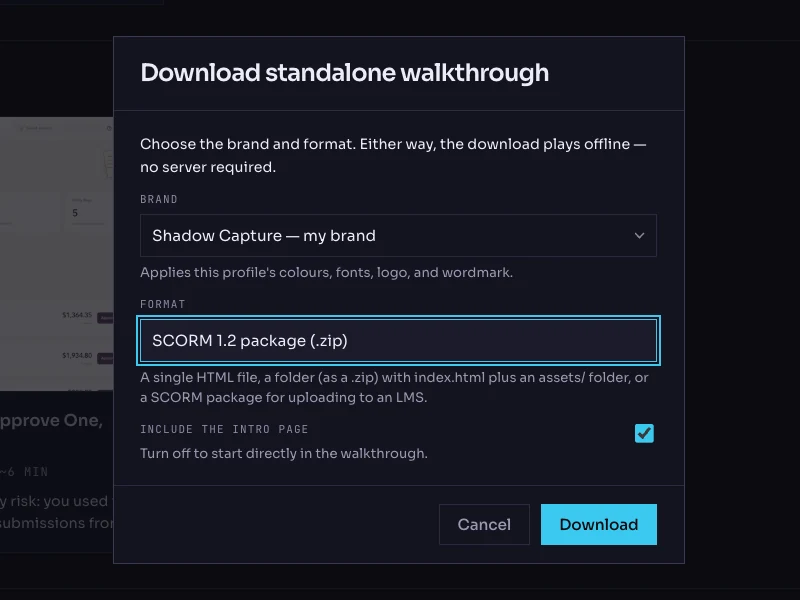
- Open the walkthrough's menu. On the Walkthroughs page, click the More options button on the walkthrough's card and choose Download…. The dialog is titled Download standalone walkthrough.
- Choose the brand. The Brand list holds your saved profiles. The brand is frozen into the package; the recorded product screens are never restyled.
- Choose the format: SCORM 1.2 package (.zip). The other options are Single HTML file, Folder (.zip) and SCORM 2004 package (.zip). Litmos needs 1.2.
- Keep the intro page on. Include the intro page is checked by default; it is the scenario and objectives screen the learner reads first.
- Click Download. The file is named after the walkthrough with a
-scorm.zipsuffix. Do not unzip it.
Add the module in Litmos
- Create the course. Under Content, open Courses and click Create a New Course. Name it after the walkthrough. The course opens on its Content tab.
- Add the module. Click Add Modules (some accounts show Add Content) and choose Upload. Drag the zip into Drop Files Here, or choose it from your computer.
- Fill in the module. Module Title is required; use the walkthrough's title. Add a Module Description, the one-sentence scenario. Leave Active ticked so learners can see it. Leave Allow SCORM module to be downloaded to mobile and viewed offline unticked; it can only be set at upload, and Shadow Capture walkthroughs are recorded from desktop screens.
- Save and wait. Click Save. Litmos uploads and converts the package, which can take a few minutes.
- Open it in a new window. On the module's details page, under Optional Settings, tick Open module in new window. The same option at the course's Settings level applies it to every module. The player is laid out for a desktop-width screen and a new window gives it one.
- Assign the course. On the course's People subtab, choose Assign to existing users, or from a team's Courses subtab choose Assign course to this Team. To let learners find it themselves, the course's Settings has Include this course in the content library so learners can self signup. An active course is visible; there is no separate publish step.
Verify it, as a learner
- Launch it from an assigned learner's account. The walkthrough opens on its intro card in a new window.
- Close mid-way, then relaunch. Complete two steps in You try, close the window, and launch again. It should resume at the same step and mode.
- Finish it. Work through to the completion screen and close the window. Under Reports, open Quick Reports, then Modules, and click the module's title. The learner should show as completed; click the learner and use the Attempts dropdown to see the attempt's results. Litmos counts an attempt only when the module is completed, so expect one.
- Try a wrong choice. On the status step, pick Pending. The feedback should explain why, and the module should not complete until the step is actually done.
Common failures and what they mean
- "The SCORM package that has been uploaded is not valid." Litmos did not
find
imsmanifest.xmlat the root of the zip, or the package is a SCORM 2004 edition it does not accept. Check you exported SCORM 1.2, and re-download rather than re-zipping by hand. - "A communication error has occurred." Litmos could not read the file. Its advice is to retry, clear the browser cache or try another browser, and remove spaces and special characters from the module title.
- The module never completes. Litmos records what the package reports. A Shadow Capture package reports Completed when the last step is done, so if the module stays incomplete, tell us, and tell Litmos too; their guidance for reporting problems is to contact both.
- Blocked content. Litmos's domains must be allowed through the firewall, proxy and pop-up blocker.
Known limitations
- No score, so no pass mark from the module. Add a Litmos assessment module to the course if you need one.
- One module per zip. A collection of walkthroughs is several modules in one course, or several courses in a learning path.
- A re-recorded walkthrough is a new zip. Replace the module's file rather than adding a second module.
- The offline option is only offered at upload, for SCORM 1.2, and cannot be changed later.
Next