LMS publishing guides · LearnUpon
Publish a Shadow Capture walkthrough to LearnUpon
LearnUpon takes a SCORM package as one module inside a course, with a settings panel per module and a built-in SCORM debugger that shows every call the package makes. This guide walks through it with LearnUpon's own labels. It is written from LearnUpon's knowledge base; we have not yet run the upload ourselves, and the guide says so where it matters.
It should, as a SCORM 1.2 package. LearnUpon accepts SCORM 1.2, SCORM 2004 3rd and 4th Edition and xAPI, single SCO only, which a Shadow Capture package is. Keep the module's default completion setting, Complete module when LMSFinish is received, and leave the mastery score empty: the package reports completion and time, never a score.
- Status
- Reference guide based on vendor documentation. This upload has not been tested end to end by Shadow Capture; verify it in your own environment before assigning the course.
- Not confirmed
- That the module shows Completed as soon as the learner closes it from the completion screen. LearnUpon records completion when it receives the package's LMSFinish call, which a Shadow Capture package makes when its window closes, and its troubleshooting notes warn that a tab closed abruptly can lose the final status. The SCORM debugger described below is how we will check.
- Sources
- Add SCORM content to modules, SCORM and xAPI overview, SCORM content troubleshooting, The module debugging tool, Publish a course.
- Package
- The free sample package, SCORM 1.2, about 423 KB.
Before you start
- Permissions. An Administrator, or an Instructor whose profile has Can create and edit courses? switched on. Instructors do not create content by default.
- Format. SCORM 1.2. LearnUpon also accepts SCORM 2004 3rd and 4th Edition for single-SCO content, so the 2004 package would work; SCORM 1.1 produces a loading error. The Exams and Interactions report is not available for 2004, which is another reason to stay with 1.2.
- The package. A Shadow Capture SCORM export, or the sample. LearnUpon requires
imsmanifest.xmlat the root of the zip, not in a subfolder, which is where Shadow Capture puts it. The 2.5 GB limit is nowhere near. - Learners' browsers. LearnUpon asks for local storage enabled and pop-up blockers off for SCORM content, and for the course to be open in one tab at a time.
Export from Shadow Capture
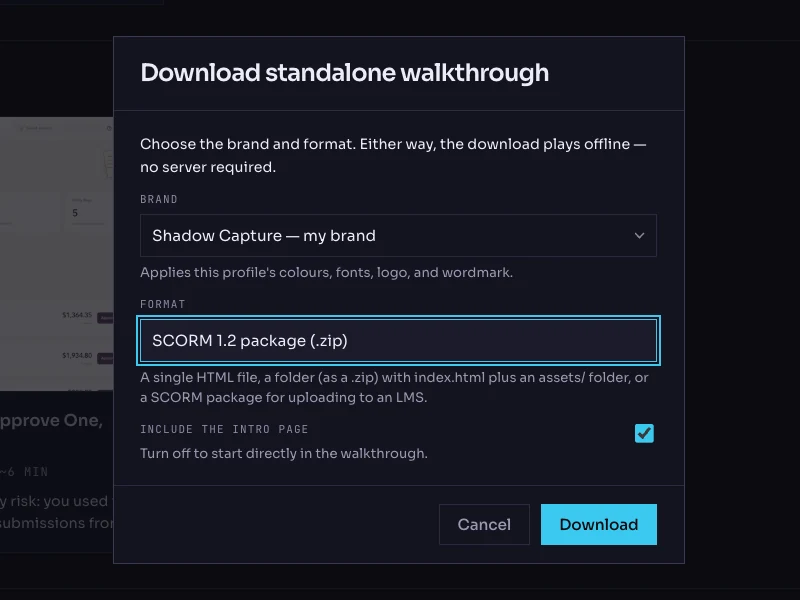
- Open the walkthrough's menu. On the Walkthroughs page, click the More options button on the walkthrough's card and choose Download…. The dialog is titled Download standalone walkthrough.
- Choose the brand. The Brand list holds your saved profiles. The brand is frozen into the package; the recorded product screens are never restyled.
- Choose the format: SCORM 1.2 package (.zip). The other options are Single HTML file, Folder (.zip) and SCORM 2004 package (.zip). LearnUpon accepts the 2004 package too; 1.2 is the recommendation here.
- Keep the intro page on. Include the intro page is checked by default; it is the scenario and objectives screen the learner reads first.
- Click Download. The file is named after the walkthrough with a
-scorm.zipsuffix. Do not unzip it.
Add the module in LearnUpon
- Create the course. Go to Courses, open the action menu and choose Create New Course. Enter the name and click Save; the course's Info page opens.
- Add the SCORM module. Open the Content tab, click Add SCORM or Tin Can, then Upload File, and choose the zip. Encoding takes a few minutes. Click Save.
- Name it. On the module, choose More, then Edit. Under Module Info, Title is the only required field; the walkthrough's title belongs there, and its one-sentence scenario fits Add Description.
- Leave completion on its default. Under Advanced Settings, Complete module when? should read LMSFinish is received, which LearnUpon recommends and calls the others legacy options. Leave Set a mastery/passing score empty: the package sends none, and a mastery score would never be met. Leave Number Attempts/Completions Allowed unlimited unless your policy says otherwise.
- Window options. The Window Options apply to tablets only, and Open SCORM in new window for Internet Explorer and Edge users is there if your learners use Edge. The player is laid out for a desktop-width screen; on a desktop browser it plays inline.
- Publish and enroll. From the course's action menu choose Publish Course and confirm with Yes. Then Enrollments, Create New Enrollment, pick the course and the learners, and Enroll. Learners cannot be enrolled on a draft course.
Verify it, as a learner
- Watch the calls first. From the course's action menu choose Preview Course, then Course Contents, open the module, click Enable SCORM Debugger and Start. A window lists every call the package makes. You should see Initialize, the status set to incomplete, a location and suspend data commit on each step, completed on the last step, and Finish when the window closes. Pop-ups must be allowed.
- Launch it as a test learner. The walkthrough opens on its intro card.
- Close mid-way, then relaunch. Complete two steps in You try, close the module, and open it again. It should resume at the same step and mode.
- Finish it, then close. Work through to the completion screen and close the module. In Courses, open the course, then Enrollments, and on the learner choose More, View enrollment details. The module should read Completed. If it reads Incomplete, note whether the debugger showed a Finish call.
- Check a report. Reports, Create report, Basic Reports, Course Modules lists each module's status with started and completed timestamps.
- Try a wrong choice. On the status step, pick Pending. The feedback should explain why, and the module should stay Incomplete until the step is actually done.
Common failures and what they mean
- "We failed to upload the Zip, as we did not find a manifest." The manifest is not at the root of the zip, usually because a folder was zipped rather than its contents. Re-download the export rather than re-zipping by hand.
- "Your course content encountered an error during the upload process." LearnUpon attributes this to non-ASCII characters in file names inside the package. Shadow Capture's file names are plain; if you see it, tell us.
- The module never completes. LearnUpon completes on LMSFinish, which needs the module to be closed rather than the browser abandoned, and never arrives if the module is open in two tabs or left open for more than twelve hours. Ask the learner to close the module from the completion screen. The debugger shows whether Finish was received.
- A mastery score warning in the debugger. A message that the course tracks passed or failed without a score does not apply here; a Shadow Capture package sets completed, not passed. If a mastery score was set on the module, remove it.
- A white page or the player scrolls inside its frame. LearnUpon supports the current and previous major versions of Chrome, Firefox, Safari and Edge. The player is laid out for a desktop-width screen.
Known limitations
- No score, so no mastery score on the module and no contribution to Set Course Pass Score. Add a LearnUpon exam module if you need a graded result.
- One module per zip. A collection of walkthroughs is several modules in one course, or several courses in a learning path.
- A re-recorded walkthrough is a new zip. Use Replace File on the module, which offers to keep learners' positions or to restart them.
- Uploaded packages cannot be downloaded back out of LearnUpon; keep your export.
Next