LMS publishing guides · Docebo
Publish a Shadow Capture walkthrough to Docebo
Docebo Learn takes a SCORM package as training material, uploaded into a course or into the shared Training materials library and added from there. This guide walks through it with Docebo's own labels. It is written from Docebo's help center; we have not yet run the upload ourselves, and the guide says so where it matters.
Can Shadow Capture training run in Docebo?
It should, as a SCORM 1.2 package. Docebo accepts SCORM 1.2 and SCORM 2004 3rd Edition; Shadow Capture's 2004 export is 4th Edition, so choose 1.2. Docebo marks the material complete when the package has reported Completed and the learner closes it, so tell learners to close the walkthrough from its completion screen. No score is needed.
Publishing notes
- Status
- Reference guide based on vendor documentation. This upload has not been tested end to end by Shadow Capture; verify it in your own environment before assigning the course.
- Not confirmed
- Which view mode suits the player best. Docebo warns that packages containing their own frames can misbehave in Inline and Theater mode, and the Shadow Capture player draws each recorded screen inside a frame, so we recommend Stand-alone mode or New window until we have tried the others.
- Sources
- Uploading and managing SCORM as training material, Managing training material settings, Managing the Training materials page, Checking the course report, Using the SCORM debugging option, Power User permissions.
- Package
- The free sample package, SCORM 1.2, about 423 KB.
Before you start
- Permissions. A Superadmin, or a Power User with Courses / View and Courses / Edit, which opens the course's Training material tab. Uploading to the shared library needs the Training material library permissions as well, and the library folders assigned as resources. A course whose properties prevent instructors and Power Users from editing training material blocks the upload whatever the permissions say.
- Format. SCORM 1.2. Docebo accepts 1.2 and 2004 3rd Edition only, and Shadow Capture's 2004 export is 4th Edition.
- The package. A Shadow Capture SCORM export, or the sample. Docebo requires
imsmanifest.xmlat the root of the zip and no special characters in the package or file names, both of which Shadow Capture's export satisfies. The limits, 1024 MB and 15,000 files, are nowhere near. Content must reference HTTPS only; a Shadow Capture package references nothing outside itself except a brand's webfont, if the profile names one. - Learners' browsers. Third-party cookies must be enabled, or Docebo shows the material as not started.
Export from Shadow Capture
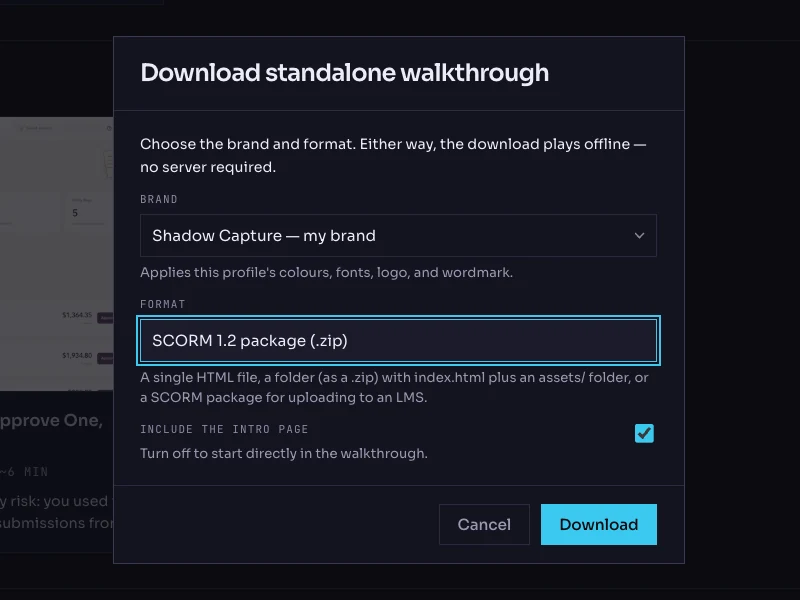
- Open the walkthrough's menu. On the Walkthroughs page, click the More options button on the walkthrough's card and choose Download…. The dialog is titled Download standalone walkthrough.
- Choose the brand. The Brand list holds your saved profiles. The brand is frozen into the package; the recorded product screens are never restyled.
- Choose the format: SCORM 1.2 package (.zip). The other options are Single HTML file, Folder (.zip) and SCORM 2004 package (.zip). Docebo needs 1.2.
- Keep the intro page on. Include the intro page is checked by default; it is the scenario and objectives screen the learner reads first.
- Click Download. The file is named after the walkthrough with a
-scorm.zipsuffix. Do not unzip it.
Upload it as training material
- Prefer the library. Docebo strongly suggests uploading to the shared library rather than straight into a course, because a package uploaded directly can take up to an hour to become playable after an update. Open the Navigation menu, find Content and delivery (the folder icon), and select Training materials (ex Central repository). Pick a folder, click + New, then New training material, then SCORM.
- Or upload into the course. From Content and delivery select Courses, open the course, move to the Training material tab, click Add training material and choose SCORM from the dropdown.
- Upload the zip. Press Upload file and select the package. Wait for the upload to reach 100%.
- Choose the view mode. Set View mode for each device. Choose Stand-alone mode, which works on desktop, tablet and mobile, or New window. Leave Inline and Theater mode (Lightbox) until you have tried them: Docebo notes that packages with frames inside them may not play in those modes. Leave the Mobile App option off unless you have tried the walkthrough on a phone.
- Skip the score settings. Score calculation method applies to packages with tests. A Shadow Capture package reports no score, so leave it alone.
- Describe it and save. On the Additional Info tab, add a thumbnail, a description (the walkthrough's one-sentence scenario) and tags. Press Save changes. If you used the library, open the course's Training material tab, click Add training material, choose Training material library, tick the item and Confirm.
- Publish the course. A new course starts Under maintenance. At the bottom of the course page, set the Status dropdown to Published and Save changes.
Verify it, as a learner
- Launch it from an enrolled learner's account. The walkthrough opens on its intro card in the mode you chose. In the course's Reports tab, User statistics should show the learner In Progress.
- Close mid-way, then relaunch. Complete two steps in You try, close the material, and open it again. It should resume at the same step and mode; Docebo bookmarks through the package's suspend data.
- Finish it, then close. Work through to the completion screen and close the material with the player's Close button. Docebo marks the material completed at that point. User statistics should show Completed with a completion date and the training material time.
- Look at the CMI data. In the report, click the learner's username, then select the SCORM row under Progress. The CMI view shows the attempt details, including the status the package sent. It should read completed, with no score.
- Try a wrong choice. On the status step, pick Pending. The feedback should explain why, and the material should stay In Progress until the step is actually done.
Common failures and what they mean
- "The required imsmanifest.xml file not found or is not in the zip root." A folder was zipped rather than its contents. Shadow Capture's export places the manifest at the root; re-download rather than re-zipping by hand.
- The material shows as not started after the learner played it. Third-party cookies are blocked in the learner's browser. Docebo needs them for tracking.
- The player does not appear in Inline or Theater mode. Change the view mode to Stand-alone mode or New window.
- Completed but shown as In Progress. The learner left without closing the material. Ask them to reopen it and close it from the completion screen. If that does not change it, enable Enable debug for SCORM API under Configuration, Platform setup and tools, Advanced settings, and send us what the log shows.
- An updated package is not playing the new version. Docebo says a package uploaded directly into a course can take 30 to 60 minutes to update. The library route avoids this.
Known limitations
- No score, so nothing for the score calculation method and no graded result. Add a Docebo test to the course if you need one.
- One SCO per package. A collection of walkthroughs is several training materials, in one course or several.
- A re-recorded walkthrough is a new zip. Update the library item; if the package's identifier changes, Docebo treats it as a new package and learners' tracking is lost, so keep the same walkthrough rather than exporting a copy.
- In the Go.Learn mobile app the learner must exit with the player's own control, and Shadow Capture walkthroughs are recorded from desktop screens in any case.
Next