LMS publishing guides · Cornerstone
Publish a Shadow Capture walkthrough to Cornerstone
Cornerstone Learning takes SCORM packages through its Content Uploader, which creates a draft online course you then publish from the Course Catalog. This guide walks through it with Cornerstone's own labels. It is written from Cornerstone's documentation; we have not yet run the upload ourselves, and the guide says so where it matters.
It should, as a SCORM 1.2 package. Cornerstone documents support for SCORM 1.2, SCORM 2004 3rd Edition and AICC. Shadow Capture's 2004 export is 4th Edition, and Cornerstone says 2004 content should be 3rd Edition conformant to avoid bookmarking and completion problems, so choose 1.2. Leave the course's Max Score blank: the package reports completion and time, never a score.
- Status
- Reference guide based on vendor documentation. This upload has not been tested end to end by Shadow Capture; verify it in your own environment before assigning the course.
- Not confirmed
- How Cornerstone maps a package that reports Completed with no score onto the transcript. Cornerstone's own guidance says completion options that include "Passed" and "Failed" can cause transcript issues, and lists "Completed/Incomplete" among the options it accepts, which is what a Shadow Capture package sends. We want to see it on a transcript before we say more.
- Sources
- Content Uploader: Upload Files, Course Catalog: General, Course Console, Minimum requirements, Course troubleshooting guide.
- Package
- The free sample package, SCORM 1.2, about 423 KB.
Before you start
- Permissions. Three: Online Class - Upload, which opens the Content Uploader; Online Class - Publish, which puts the Publish button on the Course Console; and Course Catalog - Update, to edit the draft's details. If your portal still shows the legacy Course Publisher, an administrator has to activate the content publishing features under Learning Preferences first, and everyone logs out and in again to pick up the new permissions.
- Format. SCORM 1.2. Cornerstone accepts 1.2, 2004 3rd Edition, AICC and xAPI, and recommends 3rd Edition for 2004 content. Shadow Capture's 2004 export is 4th Edition, so use 1.2.
- A provider. Every online course in Cornerstone needs a Provider, and the field is required to save the course. If you do not have one for internally made training, ask an administrator to add one before you upload.
- The package. A Shadow Capture SCORM export, or the sample. One zip, one standard inside it, up to 2 GB; a Shadow Capture package is a fraction of a megabyte. Keep it zipped.
Export from Shadow Capture
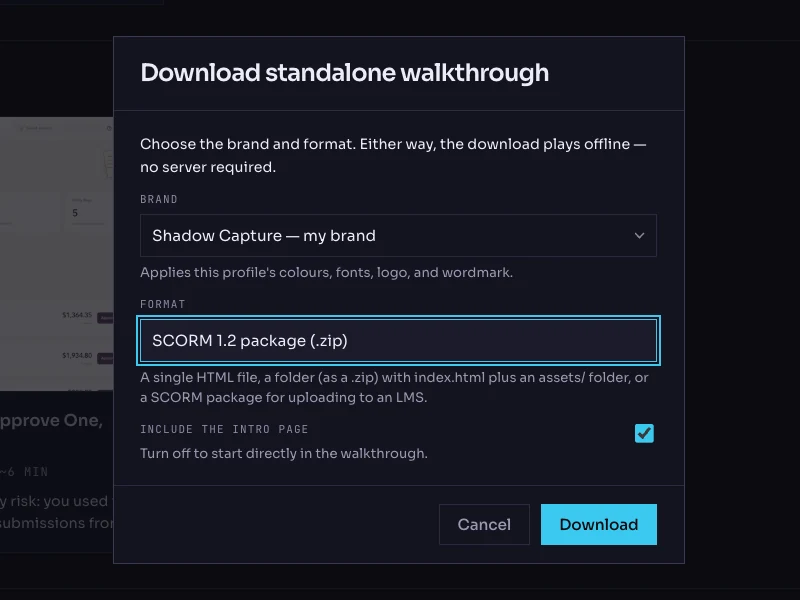
- Open the walkthrough's menu. On the Walkthroughs page, click the More options button on the walkthrough's card and choose Download…. The dialog is titled Download standalone walkthrough.
- Choose the brand. The Brand list holds your saved profiles. The brand is frozen into the package; the recorded product screens are never restyled.
- Choose the format: SCORM 1.2 package (.zip). The other options are Single HTML file, Folder (.zip) and SCORM 2004 package (.zip). Cornerstone wants 1.2 here.
- Keep the intro page on. Include the intro page is checked by default; it is the scenario and objectives screen the learner reads first.
- Click Download. The file is named after the walkthrough with a
-scorm.zipsuffix. Do not unzip it.
Upload it with the Content Uploader
- Open the uploader. Go to Admin, then Tools, Learning, Content Uploader.
- Upload the zip. Drag it into the Upload Files box or click Add Files. It moves to Processing while Cornerstone checks it; click Refresh to see it move on.
- Assign the provider. The file lands in Needs Provider. Click Select Provider and pick one from the flyout. The file moves to Draft Ready with the status Uploaded Successfully, and a draft course is created in the Course Catalog automatically.
- Edit the draft's details. Click the course title, or Edit in the Actions drop-down. This opens the Course Catalog's General tab. Fill in Course Title, a Description (the walkthrough's one-sentence scenario reads well here) and Keywords. Leave Max Score blank: the package sends no score, and Cornerstone shows no score when the field is empty. Tick Active.
- Choose how it launches. On the same tab, Launch Inline has three settings. OFF opens the walkthrough in its own tab, which suits a player laid out for a desktop-width screen. ON keeps it inside the Cornerstone page. Provider Default follows the provider's setting. Leave the mobile checkbox off unless you have tried the walkthrough on a phone; it is recorded from desktop screens.
- Publish. Open the course from the Course Catalog to reach its Course Console. While the status reads Draft, a Publish button sits to the right of the title. Use Preview first if you want to see it launch in a separate window.
- Set availability. On the Availability tab, choose the organizational units that should see it under Select Criteria, tick Include Subordinates if you want the whole branch, and Submit. With no availability set, nobody can find the course on their own.
Verify it, as a learner
- Launch it from a test learner's transcript. The walkthrough should open on its intro card, in a new tab if you left Launch Inline off. Pop-up blockers must be off for Cornerstone, and this is where you find out.
- Close mid-way, then relaunch. Complete two steps in You try, close the tab, and launch again from the transcript. It should resume at the same step and mode. If it restarts at the intro, note it: that is the bookmarking behaviour we most want to hear about.
- Finish it. Work through to the completion screen, then check the transcript. The Training Details page should show the course completed; the Score field does not appear, because no maximum score is defined, and that is expected.
- Check a report. Under Reports, Standard Reports, Training, the Online Course Attempts Report lists each attempt with an Attempt Status of Completed, Incomplete, Passed or Failed. A Shadow Capture attempt should read Incomplete until the last step and Completed after it. The Online Training Status Report gives the same per learner.
- Try a wrong choice. On the status step, pick Pending. The feedback should explain why, and the attempt should stay Incomplete until the step is actually done.
Common failures and what they mean
- "Critical Error" in the uploader. Click View Error Report. The flyout separates Critical Errors from Warning entries, each with the file name and path. A package can also finish as Completed with Comments, which is a warning, not a failure. Shadow Capture's export places the manifest at the root of the zip and lists every file it needs; if the report names a missing file, re-download rather than re-zipping by hand.
- It never gets past Needs Provider. No provider has been selected. The draft is not created until one is.
- The course launches but nothing records. Cornerstone's troubleshooting guide puts most completion problems down to how the content was published, and suggests testing a package in SCORM Cloud in frameset mode. The sample package on this site has been run in Moodle and TalentLMS, so if it records nowhere in Cornerstone, we want to know.
- No Score on the Training Details page. Expected. Cornerstone shows a score only when the package defines a maximum score, and a Shadow Capture package does not.
- Blank or blocked window on launch. Cornerstone requires pop-up blockers to be off, and cookies and JavaScript on, for the whole application.
Known limitations
- No score, so nothing for Max Score and no graded result. Pair the walkthrough with a Cornerstone test if you need one.
- One online course per package. A collection of walkthroughs is several courses, not one; put them in a curriculum.
- A re-recorded walkthrough is a new package. Use Create Version on the Course Console rather than a fresh upload, so learners' completions stay attached and you can choose between Requires retraining and Completed Equivalent for people who finished the old version.
- Cornerstone's mobile app can download SCORM courses for offline use, but Shadow Capture walkthroughs are recorded from desktop screens and are meant for desktop learners.
Next