LMS publishing guides · Canvas
Publish a Shadow Capture walkthrough to Canvas LMS
Canvas plays SCORM through an external tool that an administrator enables for the account, and imports each package as an assignment or a page. This guide walks through it with Canvas's own labels, and is frank about the one place Canvas differs from the other platforms here: it grades SCORM by score, and a Shadow Capture package sends none. It is written from Instructure's guides; we have not yet run the import ourselves.
It should play, as a SCORM 1.2 package, once the SCORM tool is enabled for your account. Canvas accepts SCORM 1.2 and SCORM 2004 in editions two to four. What Canvas records is the open question: a graded import expects a score through grade passback, and an Shadow Capture package reports completion, never a score. Until we have tested it, import as an ungraded assignment or a page and track completion with a module requirement.
- Status
- Reference guide based on vendor documentation. This upload has not been tested end to end by Shadow Capture; verify it in your own environment before assigning the course.
- Not confirmed
- What a graded import records for a package that reports Completed with no score. Instructure's documentation does not say, and at least one Canvas community thread reports that completion flags alone produced no grade. That is why this guide recommends the ungraded import and a module requirement, and it is the first thing we will test.
- Sources
- How do I import SCORM files as an assignment?, How do I import SCORM files as a page?, How do I add requirements to a module?, How do I add an assignment using an external app?, Canvas account comparison.
- Package
- The free sample package, SCORM 1.2, about 423 KB.
Before you start
- The SCORM tool. It has to be enabled in External Apps at the account level before any course can use it. Instructure asks administrators to contact their Customer Success Manager for that. Inside a course, a teacher can show or hide it under Settings, Navigation.
- Format. SCORM 1.2. Canvas also accepts 2004 2nd, 3rd and 4th Edition, so the 2004 package would import; 1.2 is the recommendation here.
- The package. A Shadow Capture SCORM export, or the sample. Instructure publishes no size limit or manifest rule for SCORM uploads; Shadow Capture's package is small and has its manifest at the root.
- Decide the import type first. Canvas offers a graded assignment with grade passback, an ungraded assignment, or a page, and the choice is permanent for that import. For a Shadow Capture walkthrough choose the ungraded assignment or the page.
Export from Shadow Capture
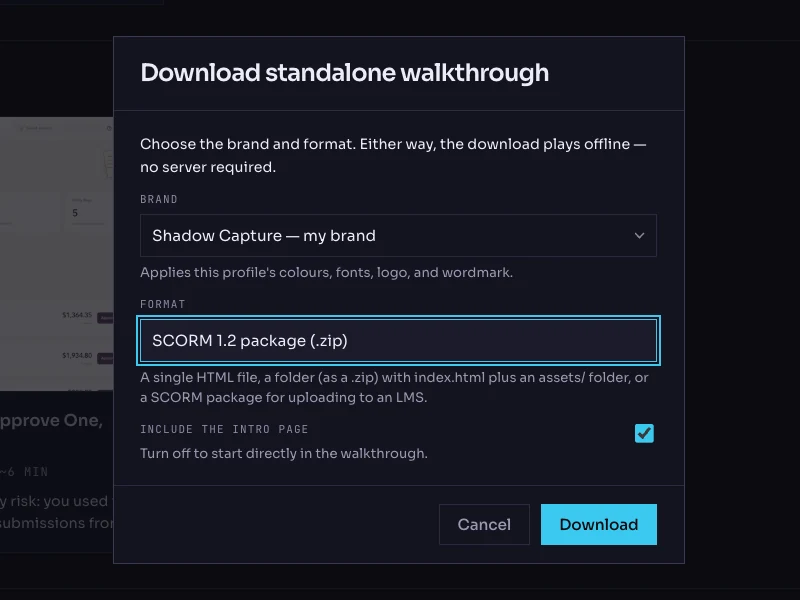
- Open the walkthrough's menu. On the Walkthroughs page, click the More options button on the walkthrough's card and choose Download…. The dialog is titled Download standalone walkthrough.
- Choose the brand. The Brand list holds your saved profiles. The brand is frozen into the package; the recorded product screens are never restyled.
- Choose the format: SCORM 1.2 package (.zip). The other options are Single HTML file, Folder (.zip) and SCORM 2004 package (.zip).
- Keep the intro page on. Include the intro page is checked by default; it is the scenario and objectives screen the learner reads first.
- Click Download. The file is named after the walkthrough with a
-scorm.zipsuffix. Do not unzip it.
Import it in Canvas
- Show the SCORM link if it is hidden. In the course, open Settings, then the Navigation tab. Next to SCORM, click the settings icon, select Enable, and click Save at the bottom of the page.
- Upload the package. In Course Navigation, click SCORM, then Upload. Select the zip and click Open. The upload can take several minutes.
- Choose the import type. Click the Choose Import Type menu and select Import as an ungraded assignment, or Import as a page if you would rather it sat in a module as content. Avoid the graded import until the test record above says otherwise. Click Go.
- Open the result. Click the Assignment icon beside the import to open it. It also appears on the Assignments index, where you can move it into an assignment group. Give it the walkthrough's title, and add the one-sentence scenario around the player with Edit if you like.
- Let it breathe. The player is laid out for a desktop-width screen. On an assignment, Load This Tool In A New Tab opens it outside the Canvas frame; otherwise it plays inline on the page.
- Publish and place it. Click Save & Publish, then add the assignment or page as a module item. In the module's requirements, add a requirement on the item: Mark as done lets the learner confirm completion themselves; View the item completes on opening. Do not use Score at least, which needs a posted grade the package cannot produce.
Verify it, as a learner
- Preview it as the teacher. On the SCORM page the preview shows a No Score label, which is expected for a Shadow Capture package. Reset clears your own attempt.
- Launch it as an enrolled test student. The walkthrough opens on its intro card, inline or in a new tab. Canvas warns that a learner who is not enrolled gets no tracking at all.
- Close mid-way, then relaunch. Complete two steps in You try, leave the page, and come back. Whether it resumes at the same step is one of the things we want to hear about.
- Finish it. Work through to the completion screen. Then check the module progress for the test student against the requirement you set. If you set Mark as done, the student marks it. If you also tried a graded import, look in the Gradebook and tell us whether anything arrived.
- Try a wrong choice. On the status step, pick Pending. The feedback should explain why, and nothing about the module requirement changes until the learner finishes.
Common failures and what they mean
- There is no SCORM link in Course Navigation. Either it is hidden under Settings, Navigation, or the tool is not enabled for the account. Only an administrator, through Instructure, can enable it.
- Content does not load. Instructure's guide says the tool may need to be reconfigured and to contact your admin. Messages such as "Token has expired" or "Player could not load" come from Canvas's signed launch links, which are valid for a few seconds; reload the page rather than reusing a copied link.
- The Gradebook shows nothing for a graded import. The package sent no score. Delete the import from the SCORM page, which removes it everywhere, and import again as ungraded. Deleting only from Assignments leaves a broken entry on the SCORM page.
- It works in production but not in beta or test. The SCORM tool is not available in Canvas beta and test environments.
Known limitations
- No score, so no grade passback and no Score at least requirement. Pair the walkthrough with a Canvas quiz if you need a graded result.
- The import type cannot be changed afterwards; a wrong choice means deleting and re-importing.
- SCORM is not available in Free-for-Teacher accounts.
- A re-recorded walkthrough is a new import. Delete the old one from the SCORM page and import the new package.
Next