LMS publishing guides · Blackboard Learn
Publish a Shadow Capture walkthrough to Blackboard Learn
Blackboard Learn plays SCORM through its SCORM Engine building block and lets you grade a package by score, by completion or by satisfaction. This guide walks through the upload in both the Ultra Course View and the Original Course View, with Blackboard's own labels. It is written from Anthology's documentation; we have not yet run the upload ourselves, and the guide says so where it matters.
It should, as a SCORM 1.2 package, once the SCORM Engine building block is available on your instance. Blackboard accepts SCORM 1.2, SCORM 2004 up to 4th Edition, AICC and xAPI. When you set up grading, choose Completion rather than Score or Satisfaction: an Shadow Capture package reports completion and time, never a score and never passed or failed.
- Status
- Reference guide based on vendor documentation. This upload has not been tested end to end by Shadow Capture; verify it in your own environment before assigning the course.
- Not confirmed
- What grade a package graded by Completion produces when it reports Completed: presumably the maximum score, but Anthology's pages do not define the mapping. Also whether an ungraded package in Ultra records anything an instructor can see, since Anthology notes that analytics are unavailable for ungraded SCORMs. That is why this guide recommends grading by Completion.
- Sources
- SCORM packages (Ultra), Add content packages (Original), SCORM Engine (administrator), August 2025 release notes.
- Package
- The free sample package, SCORM 1.2, about 423 KB.
Before you start
- The building block. The SCORM Engine building block ships with Blackboard but an administrator has to make it available: on the Administrator Panel, under Integrations, select Building Blocks, then Installed Tools, find SCORM Engine and choose Set Available. It does not work on Blackboard Basic Edition.
- Role. Instructors have full access to course content. The Course Builder role can add content but not see grades.
- Format. SCORM 1.2. Blackboard's engine also accepts every 2004 edition, so the 2004 package would work; 1.2 is the recommendation here.
- The package. A Shadow Capture SCORM export, or the sample. Upload size is governed by the instance's file size limit, set by the administrator; a Shadow Capture package is a fraction of a megabyte.
Export from Shadow Capture
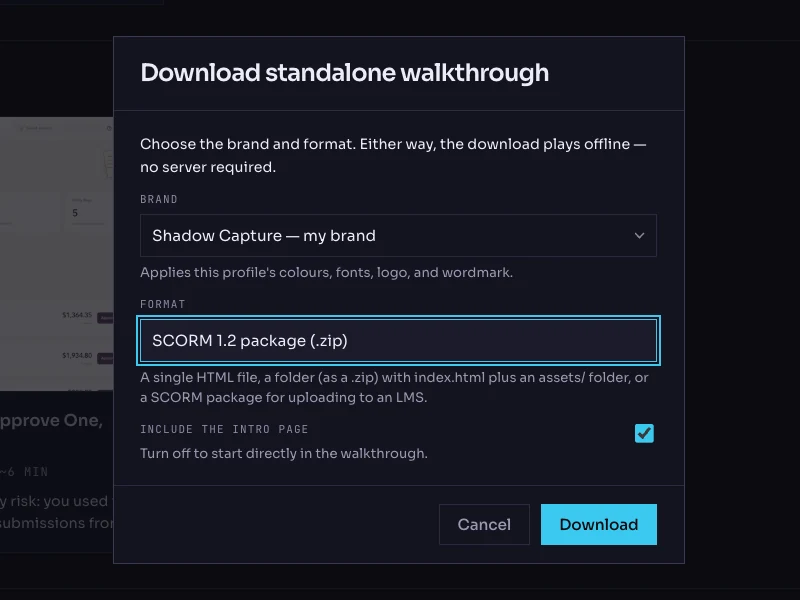
- Open the walkthrough's menu. On the Walkthroughs page, click the More options button on the walkthrough's card and choose Download…. The dialog is titled Download standalone walkthrough.
- Choose the brand. The Brand list holds your saved profiles. The brand is frozen into the package; the recorded product screens are never restyled.
- Choose the format: SCORM 1.2 package (.zip). The other options are Single HTML file, Folder (.zip) and SCORM 2004 package (.zip).
- Keep the intro page on. Include the intro page is checked by default; it is the scenario and objectives screen the learner reads first.
- Click Download. The file is named after the walkthrough with a
-scorm.zipsuffix. Do not unzip it.
Add it in the Ultra Course View
- Create the item. On the Course Content page, select the plus sign where the walkthrough belongs, select Create, and in the Create Item panel select SCORM package.
- Upload the zip. In the SCORM Settings panel, select Upload SCORM package, or Browse Content Collection if the file is already there.
- Details. Under Details & Information, give it the walkthrough's title and, if you want one, a Due date. The one-sentence scenario fits Description.
- Grade by completion. Under Grading & Submissions, set Attempts allowed as your policy prefers, and under Grade SCORM choose to grade using Completion, not Score or Satisfaction. Choose the Grading schema and Maximum score now: they cannot be changed after import. Leave Grade individual SCOs off; the package is one SCO.
- Make it visible. Students cannot see the item until you change its visibility, and you can add release conditions on date or performance.
Add it in the Original Course View
- Create the item. In a content area, point to Build Content and select Content Package (SCORM). Choose the zip with Browse My Computer and Submit. Blackboard validates the package and shows a second page.
- Information and availability. Under SCORM Information, enter the Title and Description. Under SCORM Availability, set Make SCORM Available to Yes, choose the Number of Attempts, and set Display After and Display Until if you need them.
- Grade by completion. Under Grading, set Grade SCORM to grade with points possible based on SCORM Completion, not SCORM Score or SCORM Satisfaction. Leave Grade SCOs at No.
- Launch behaviour. Set Edit SCORM Player Behavior to Yes to reach the SCORM Engine Advanced Options. Under Launch Behavior, New Window gives the player the desktop-width screen it is laid out for; New Window After Click avoids pop-up blockers by launching from a click. Frameset keeps it inline, which the Blackboard mobile app prefers.
- Submit. The item appears in the content area.
Verify it, as a learner
- Launch it as a test student. In Ultra, the student selects Start attempt and a new window opens with the walkthrough on its intro card. Pop-ups may need to be allowed.
- Close mid-way, then relaunch. Complete two steps in You try, close the window, and open the item again. Ultra offers Continue attempt for unsubmitted work, and the walkthrough should resume at the same step and mode.
- Finish it. Work through to the completion screen and close the window. In Ultra, open Grades & Submissions and select the student's submission: the report shows Time spent, Completed attempts, Amount attempted, which reads 100% when the attempt is complete, and the SCO's Status. In Original, open the Full Grade Center, select the attempt, choose View to reach Attempt Details, or run SCORM Reports under Evaluation in the Control Panel.
- Read the grade. With grading by Completion, note what the gradebook shows when the status is complete; that is the mapping we want to record. Fields the package does not send, such as score, show as N/A.
- Try a wrong choice. On the status step, pick Pending. The feedback should explain why, and the attempt should stay incomplete until the step is actually done.
Common failures and what they mean
- "Some issues were found with this course which may affect playability." Blackboard did not recognise the package as SCORM and will treat it as an IMS content package. Shadow Capture's export has its manifest at the root; re-download rather than re-zipping by hand.
- The grade never appears. Grading is set to Score or Satisfaction, which the package does not send. In Ultra the grading choice cannot be changed after import, so delete the item and add it again graded by Completion.
- The window does not open. A pop-up blocker. In Original, New Window After Click launches from a click, which blockers usually allow.
- Anything else. The administrator can turn on Debugger Options in the SCORM Engine advanced options to log the runtime conversation, and we would like to see it.
Known limitations
- No score and no satisfaction status, so grade by Completion only. Pair the walkthrough with a Blackboard test if you need a graded result.
- The grading schema and maximum score are fixed at import in Ultra.
- One SCO per package. A collection of walkthroughs is several items, not one.
- A re-recorded walkthrough is a new package. Delete and re-add the item in Ultra, or edit it in Original; earlier attempts stay on the old item's record.
- The Blackboard app launches SCORM in its in-app browser, but Shadow Capture walkthroughs are recorded from desktop screens and are meant for desktop learners.
Next