LMS publishing guides · Absorb
Publish a Shadow Capture walkthrough to Absorb LMS
Absorb takes a SCORM package as a learning object in an online course's syllabus, or imports it as a course of its own. This guide walks through it with Absorb's own labels. It is written from Absorb's help center; we have not yet run the upload ourselves, and the guide says so where it matters.
Can Shadow Capture training run in Absorb?
It should, as a SCORM 1.2 package. Absorb accepts SCORM 1.2 and 2004, AICC and Tin Can, single SCO only, and marks a learner Complete on the package's Complete status, which is exactly what a Shadow Capture walkthrough sends. Leave the lesson's Lesson Contains Assessment toggle off: the package reports no score.
Publishing notes
- Status
- Reference guide based on vendor documentation. This upload has not been tested end to end by Shadow Capture; verify it in your own environment before assigning the course.
- Not confirmed
- Whether the 2004 package plays as well as 1.2; Absorb does not say which 2004 editions it accepts, so this guide recommends 1.2. Also what the Score column shows for a lesson with the assessment toggle off: Absorb's documentation says 0%, which is expected and harmless, and we want to see it beside a Complete status.
- Sources
- Third Party Courses: SCORM, AICC, Tin Can, An introduction to Learning Objects, Online Courses: Completions, How to create an Online Course, Course Activity Report, Absorb FAQs.
- Package
- The free sample package, SCORM 1.2, about 423 KB.
Before you start
- Permissions. An Administrator or System Admin. Creating an online course needs the Courses, Online Courses permission with Modify and the general permission ticked; the default Administrator role has it, a custom role may not.
- Format. SCORM 1.2. Absorb accepts 2004 as well but does not name the editions, and multi-SCO packages are not supported; a Shadow Capture package is a single SCO.
- The package. A Shadow Capture SCORM export, or the sample. Absorb wants the zip to open straight onto the course contents, not a nested folder, file paths under 130 characters, and no special characters in names. Shadow Capture's export meets all three. The 2 GB limit is nowhere near.
Export from Shadow Capture
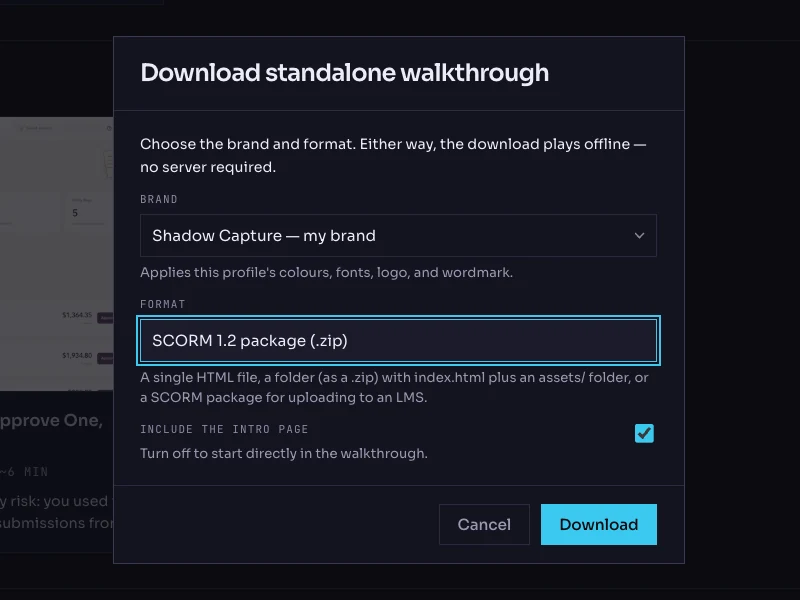
- Open the walkthrough's menu. On the Walkthroughs page, click the More options button on the walkthrough's card and choose Download…. The dialog is titled Download standalone walkthrough.
- Choose the brand. The Brand list holds your saved profiles. The brand is frozen into the package; the recorded product screens are never restyled.
- Choose the format: SCORM 1.2 package (.zip). The other options are Single HTML file, Folder (.zip) and SCORM 2004 package (.zip). You will tell Absorb which format you chose, so remember it.
- Keep the intro page on. Include the intro page is checked by default; it is the scenario and objectives screen the learner reads first.
- Click Download. The file is named after the walkthrough with a
-scorm.zipsuffix. Do not unzip it.
Add it as a learning object
- Create or open the course. In the Admin Experience, click Courses, then Courses. From the right-hand Actions menu choose Add Online Course, or tick an existing course and click Edit.
- Add the learning object. In the Syllabus section, click Add Learning Object and pick the format you exported, SCORM 1.2. Click Next. Under Select the Update Behavior, choose New Learning Object.
- Upload the zip. In Lesson Source File, click Choose File and upload from your computer or the File Manager. Click Continue.
- Fill in the lesson. Title is the walkthrough's title; Description its one-sentence scenario. For Desktop, choose Launch in a modal (iFrame), which Absorb notes is unaffected by pop-up blockers, or Launch in a popup if your learner layout is narrow. Leave Width and Height blank, as Absorb advises. Leave Lesson Contains Assessment off. Click Apply.
- Activate and publish. In the course's General section, set Status to ACTIVE. Under Enrollment Rules, set Allow Self Enrollment or enroll learners yourself. Click Publish.
- Or import it as a course. From the Courses Report, the Actions menu has Import Course: choose the Format, Choose File, and Import. Absorb creates a new online course named from the package. Set its status and enrollment rules as above.
Verify it, as a learner
- Launch it from an enrolled learner's account. The walkthrough opens on its intro card, in the modal or pop-up you chose.
- Close mid-way, then relaunch. Complete two steps in You try, close the lesson, and open it again. It should resume at the same step and mode; Absorb stores the package's data on each commit and re-enters with a resume flag.
- Finish it. Work through to the completion screen and close the lesson. In Reports, the Course Activity Report should show the learner's Status as Complete with a Date Completed. Once reached, that status is final.
- Check the lesson detail. From the report's Actions, open Edit Activity. Lesson Activity lists the learning object with its attempts, score and status. Score reads 0% because the assessment toggle is off, and that is expected.
- Try a wrong choice. On the status step, pick Pending. The feedback should explain why, and the status should stay In Progress until the step is actually done.
Common failures and what they mean
- "Sorry, something went wrong" on upload. Absorb lists three causes: a special character in a file name, a format mismatch such as uploading a SCORM 1.2 package after choosing SCORM 2004, and a nested zip. Check the format you picked matches the one you exported; re-download rather than re-zipping by hand.
- "Lesson Failed to Load" or a mixed content error. The package references something over HTTP. A Shadow Capture package references nothing outside itself except a brand's webfont, if the profile names one, and that is HTTPS.
- The learner's status never reaches Complete. Absorb accepts only the Complete status, not a SCORM 2004 success status. A Shadow Capture package sends completed, so if this happens, tell us. Also check the learner's session did not sit idle for four hours, after which unsaved progress is lost.
- A replaced package still plays the old version. Absorb notes that a file replaced under the same name can be cached for up to 24 hours.
- The pop-up will not close. Absorb's guidance is to open the lesson in a pop-up when a package's own close control fails; otherwise prefer the modal.
Known limitations
- No score, so leave Lesson Contains Assessment off and expect 0% in the Score column. Add an Absorb assessment to the syllabus if you need a graded result.
- One SCO per package. A collection of walkthroughs is several learning objects in one syllabus, or several courses in a curriculum.
- A re-recorded walkthrough is a new zip. Use Replace an Existing Lesson when adding it, and Reset Learner Progress only if you want unfinished learners to start over.
- Absorb's mobile app can play SCORM offline, but Shadow Capture walkthroughs are recorded from desktop screens and are meant for desktop learners.
Next