LMS publishing guides · 360Learning
Publish a Shadow Capture walkthrough to 360Learning
In 360Learning a SCORM package becomes a course of its own, imported through Create and then published to a group's catalog or placed as a step in a path. This guide walks through it with 360Learning's own labels. It is written from 360Learning's documentation; we have not yet run the import ourselves, and the guide says so where it matters.
It should, as a SCORM 1.2 package, and 360Learning's current player also accepts SCORM 2004 4th Edition. Completion is recorded when the package reports Completed, which an Shadow Capture walkthrough does on the last step. One rule to follow: if the course sits in a path, do not turn on the step's Minimum score option, because a package that returns no score is then marked To retake however completely the learner finished it.
- Status
- Reference guide based on vendor documentation. This upload has not been tested end to end by Shadow Capture; verify it in your own environment before assigning the course.
- Not confirmed
- That the progress moves from 50% to 100% on the completion screen without the learner closing the course. 360Learning's documentation says a course that reaches Completed but exits with a suspend and no final commit stays at 50%; a Shadow Capture package commits Completed as the last step is done, so this should be fine, and it is the first thing we will check.
- Sources
- Create a course from an eLearning standard file, Publish a course to a group's catalog, Set a minimum score on a path step, Course results and statistics, A SCORM course stays at 50%.
- Package
- The free sample package, SCORM 1.2, about 423 KB.
Before you start
- Permissions. Admins, editors and contributors can create a course from an eLearning standard file. Publishing it to a group's catalog takes a platform administrator, or a coach or group administrator for their own group.
- Format. SCORM 1.2, or SCORM 2004 4th Edition if you prefer. The current player accepts SCORM 1.1, 1.2, 2004 in all three editions and cmi5; the legacy player accepts 1.2 and 2004. To tell which you have, click Create, then Course: if the dialog offers eLearning standard, you are on the current player.
- The file name matters. The course holds exactly one activity, its title
is the name of the file you upload, and it cannot be edited afterwards. Rename the
Shadow Capture export before you import it, to the walkthrough's title, so learners do not
see a slug with
-scormon the end. - The package. A Shadow Capture SCORM export, or the sample. 360Learning wants the zip archived directly, with no folder wrapping the contents, which is how Shadow Capture writes it. The limits, 4 GB unzipped and 50,000 files, are nowhere near.
Export from Shadow Capture
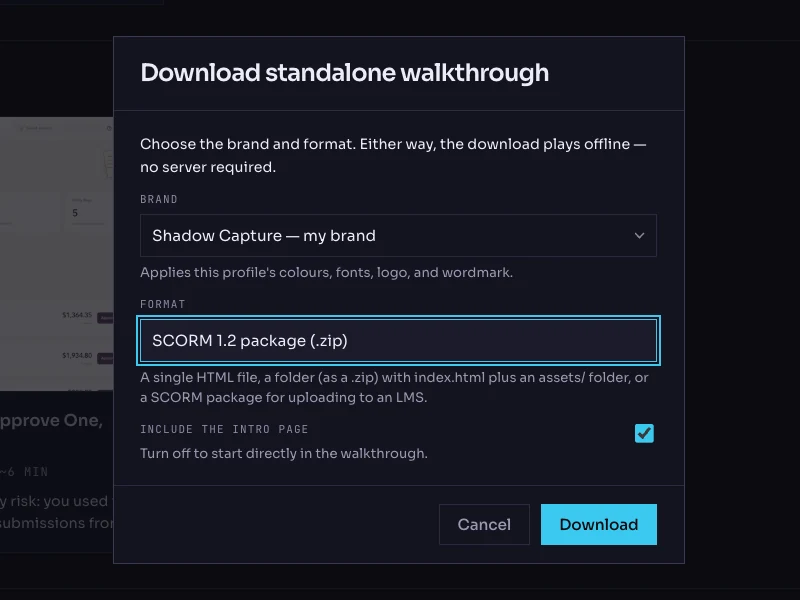
- Open the walkthrough's menu. On the Walkthroughs page, click the More options button on the walkthrough's card and choose Download…. The dialog is titled Download standalone walkthrough.
- Choose the brand. The Brand list holds your saved profiles. The brand is frozen into the package; the recorded product screens are never restyled.
- Choose the format: SCORM 1.2 package (.zip). The other options are Single HTML file, Folder (.zip) and SCORM 2004 package (.zip); the 2004 package also works in 360Learning's current player.
- Keep the intro page on. Include the intro page is checked by default; it is the scenario and objectives screen the learner reads first.
- Click Download, then rename the file. The file is named after the
walkthrough with a
-scorm.zipsuffix. Rename it to the title you want learners to see, keeping the.zipextension. Do not unzip it.
Import it as a course
- Create the course. At the top right of the homepage, click Create, then Course.
- Choose eLearning standard. Click eLearning standard. On the legacy player the option is SCORM, followed by Upload SCORM in the left sidebar and OR SELECT A FILE.
- Upload the zip. Click CHOOSE SOURCE FILE, select the renamed zip, and click Confirm at the bottom right. 360Learning says the import can take up to an hour; a Shadow Capture package is small and should be much quicker.
- Publish it to a group. Go to Courses. In the In catalog column, click Select group(s), tick the groups whose learners should see it, and click Confirm. To let other editors reuse it in their paths, do the same in the In library column.
- Or add it to a path. Open the path, click Edit, and at the bottom of Build your training, to the right of Add a step, click Course or path and select the course. Leave the step's Minimum score option off.
- Mobile. Mobile sharing is on by default in the course's General settings. Shadow Capture walkthroughs are recorded from desktop screens, so consider turning it off unless you have tried one on a phone.
Verify it, as a learner
- Launch it from the catalog. Click START on the course's home page. The walkthrough opens in the same tab on current platforms, on its intro card, and the learner's progress moves to 50%.
- Leave mid-way, then come back. Complete two steps in You try, leave the course, and open it again. It should resume at the same step and mode: 360Learning stores the package's suspend data after an unfinished attempt.
- Finish it. Work through to the completion screen. Progress should read 100%. If it stays at 50%, note it: that is the behaviour described in the test record above.
- Check the statistics. Go to Courses and click the course's Results and statistics icon. Completion rate should reflect the attempt, and Results by group can be downloaded with one line per attempt showing Progress, Start, End and Total time spent. Score is blank, and that is expected. For one learner, Users, View profile, Courses shows Progress, Attempts, Time Spent and Last activity.
- Try a wrong choice. On the status step, pick Pending. The feedback should explain why, and progress should stay at 50% until the step is actually done.
Common failures and what they mean
- The import fails. 360Learning rejects a zip that wraps its contents in a folder, uses an unusual compression method, or has characters in its file name that Windows disallows. Shadow Capture's export meets the first two; check the name you gave the file.
- Progress stuck at 50%. The package never sent Completed, or sent it without a final commit. A Shadow Capture package commits Completed when the last step is done, so if you see this, tell us.
- A path step reads To retake after completion. The step's Minimum score option is on. Shadow Capture packages return no score, and 360Learning documents that such a step is To retake regardless of completion. Turn the option off.
- The learner cannot start it a second time. By default a course can be played once per session. Allow retries with the path step's Attempts option.
- The activity has an odd title. It is the file name. Update the file from the course's Edit view with a correctly named zip; unfinished learners lose their place when the file is replaced.
Known limitations
- No score, so no Minimum score on a path step. Follow the walkthrough with a 360Learning quiz if you need a graded result.
- One activity per course, and the course cannot hold a cheat sheet, question or document beside it. A collection of walkthroughs is a path.
- Learners cannot review attempts older than a year, and eLearning standard courses are not included in offline shared mode.
- A re-recorded walkthrough is a new zip. Use Update file on the activity; that deletes unfinished learners' suspend data, so they start over.
Next